
You blocked someone on Facebook a while ago. Now you need to find that list again, check whether the block still makes sense, or undo it without creating a new headache. That's where many users get stuck. The menus look different on desktop and mobile, personal accounts don't behave like Pages, and Facebook hides some of the most important rules until after you've clicked the button.
If you manage social accounts for yourself, a client, or a brand, the block list on facebook isn't a minor setting. It's part safety tool, part moderation control, and part account hygiene. Used well, it prevents repeat friction. Used carelessly, it creates confusion across devices and can lock you into decisions you didn't mean to make.
Table of Contents
- Why Your Facebook Block List Matters More Than You Think
- Finding Your Block List A Multi-Device Walkthrough
- The Unblocking Process and Its Hidden Rules
- Beyond Blocking What It Really Does for Your Privacy
- A Creator's Guide to Managing Facebook Page Blocking
- Troubleshooting Common Block List Problems
Why Your Facebook Block List Matters More Than You Think
Many users consider blocking only as a reactive measure. Someone might send abuse, derail a thread, tag you excessively, or refuse to stop messaging. You block them and move on. Weeks later, you may need to review that decision, and the setting suddenly feels buried.
That's a mistake. The block list is one of the few controls on Facebook that gives a user direct authority over who can interact with them. Facebook introduced the feature around 2006, and it now serves a platform with 3.07 billion monthly active users. A 2024 Hootsuite study found that 28% of global users had blocked at least one person in the past year, which tells you this isn't edge-case behavior. It's normal account management on a massive network, as summarized by Sprout Social's Facebook stats overview.
Practical rule: Treat blocking the way you treat password resets or privacy settings. It's routine maintenance, not drama.
From a practitioner's angle, the value is simple. Blocking helps you stop direct contact fast, reduce repeat exposure to the same person, and clean up your own working environment if you manage comments, messages, and community spaces all day.
It also solves a different problem for teams. New social managers often assume every unwanted interaction should be handled with hiding, deleting, reporting, or replying. Sometimes the cleanest move is a block. Not because it's harsh, but because it ends a loop you don't need to keep managing.
Finding Your Block List A Multi-Device Walkthrough
The biggest source of confusion is that the path changes slightly by device. The setting exists in the same general privacy area, but Facebook surfaces it differently on desktop and mobile apps.
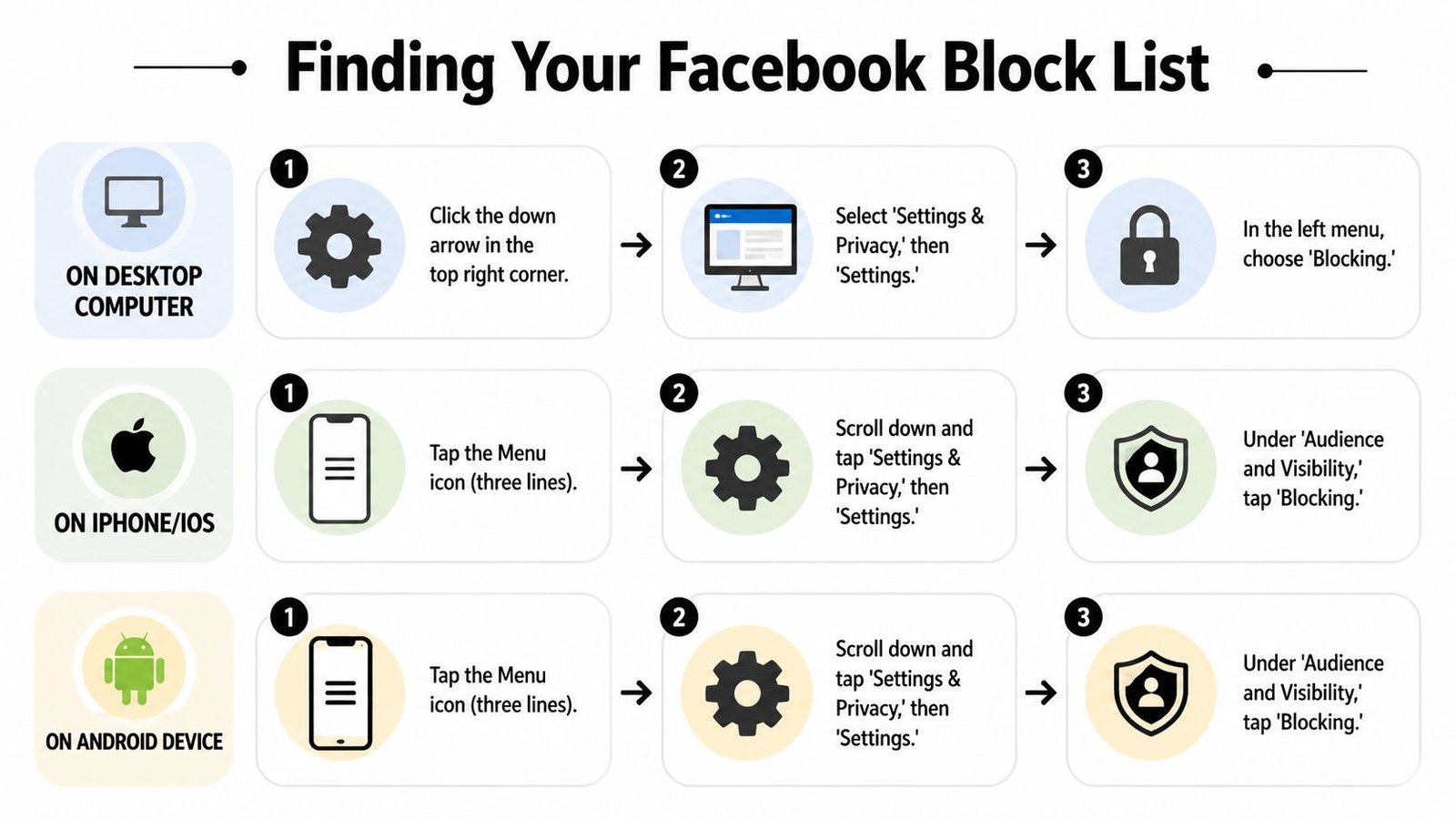
On desktop computer
On a desktop browser, start from your profile area in the top right. Open Settings & Privacy, then go to Settings. From there, look for Blocking in the left-side menu.
If Facebook has shifted the layout again, don't overthink it. Stay inside account settings and scan for the privacy area first. Blocking usually sits under the audience and visibility side of the interface, even when the menu labels move around.
A good operating habit for desktop is to bookmark the general settings page in your browser, not the block list itself. Facebook changes internal paths often enough that a direct bookmark can break, while the main settings area usually remains stable.
On iPhone and iOS
On iPhone, open the Facebook app and tap the Menu icon. Go into Settings & Privacy, then Settings, then scroll to Audience and Visibility and tap Blocking.
The common mistake on iOS is stopping too early in the privacy menu. People see privacy shortcuts, assume blocking should be there, and miss the full settings route. If you don't see it right away, keep going deeper into settings rather than backing out.
iOS users also run into interface lag more often after app updates. If a menu looks incomplete, close the app fully and reopen it before assuming the option is gone.
On Android device
On Android, the path is very similar. Tap Menu, open Settings & Privacy, then Settings, then find Audience and Visibility and select Blocking.
Android adds one extra wrinkle. Device manufacturers and app caching can make the settings screen look stale for a while, especially if you've recently changed something on another device. If the block list looks incomplete, that doesn't always mean the block failed. It can mean the app hasn't refreshed yet.
If you manage accounts across phone and desktop, check the same setting on both before making a second decision. Many “missing blocks” are just stale app views.
When menus look slightly different
Facebook rolls out interface changes gradually, so your app may not match someone else's screenshot exactly. That's normal. Focus on the logic, not the pixel-perfect path.
A quick reference helps:
| Device | Usual path |
|---|---|
| Desktop | Profile area, Settings & Privacy, Settings, Blocking |
| iPhone | Menu, Settings & Privacy, Settings, Audience and Visibility, Blocking |
| Android | Menu, Settings & Privacy, Settings, Audience and Visibility, Blocking |
If you're training a new team member, tell them to remember two things. First, personal-account blocking lives in account settings. Second, Page moderation tools are separate. Mixing those up causes half the confusion people blame on Facebook.
The Unblocking Process and Its Hidden Rules
Unblocking is easy. The consequences are not.
How to unblock someone without guessing
Go back to your block list, find the person's name, and choose the option to unblock them. Facebook will usually prompt you to confirm the action. Read that prompt instead of speed-clicking through it.
On a personal account, this is one of those actions that feels reversible until you realize Facebook attaches conditions to it. That's why I tell junior managers not to unblock in the middle of an argument, a customer dispute, or a moderation flare-up.
If the reason for the original block hasn't changed, leave it alone. Unblocking should be intentional, not curiosity-driven.
The two rules that matter most
Meta's 2026 policy update added a hard constraint that many people won't discover until they need it. Personal block lists are capped at 1,000 entries, and after you unblock someone, there is a 48-hour cooldown before you can block them again, according to this YouTube walkthrough discussing the 2026 Meta update.
That cooldown changes how you should think about “temporary unblocks.” If you unblock someone just to check their profile, review a conversation, or test whether a problem is over, you give up your ability to re-block them immediately if the situation goes bad again.
Don't unblock to “see if things are better.” Unblock only when you're comfortable losing the instant re-block option for two full days.
The cap matters too. Most casual users won't hit it. Heavy creators, public-facing figures, and people dealing with repeated spam are more likely to run into it. Once a list has a ceiling, every unblock becomes a capacity decision, not just a social one.
For a quick visual explanation, this video helps walk through the interface:
When unblocking is the wrong move
There are three situations where I'd avoid it:
- Active harassment: If the person was blocked for abuse, don't test the boundary casually.
- Business disputes: If there's a client, customer, or competitor conflict involved, document first and change settings later.
- Impulse cleanup: Don't mass-unblock people just because the list feels messy.
A smaller, cleaner list sounds good in theory. In practice, careless unblocking creates new moderation work.
Beyond Blocking What It Really Does for Your Privacy
You block someone on your phone after a bad message thread, then open Facebook on desktop later and still see traces of that person in shared spaces. That's usually the moment people realize blocking is not one simple off switch. The effect changes based on where the interaction happens, which account you're using, and what kind of visibility existed before the block.
What a block shuts off, and what it doesn't
On a personal Facebook account, blocking cuts off direct access in several places at once. The other person cannot visit your profile in the normal way, contact you through Messenger, send friend requests, tag you, or invite you to events. For day-to-day privacy, that matters because it closes the common routes people use to re-enter contact after you have already decided the interaction needs to stop.
The part many users miss is that blocking does not wipe history. Old messages may still exist in past threads. Screenshots still exist. Mutual friends may still mention the person, and names can still surface in shared contexts depending on the setting and the feature.
Desktop and mobile can add to the confusion. A block made in the app applies to the account, not just that device, but Facebook does not always present the result the same way on every screen. On mobile, people often expect the blocked account to disappear completely. On desktop, they are more likely to notice leftovers such as old conversations, group history, or cached interface elements and assume the block failed. Usually, it did not fail. They are seeing the limits of what blocking is designed to do.
Privacy control, not full erasure
Blocking works best as access control. It stops future interaction from the blocked account and reduces visibility into your activity.
That is different from total removal.
If someone already downloaded a photo, copied a post, or shared your name elsewhere, blocking will not reverse that. If a post was public before, blocking does not rewrite who may have seen it at the time. This is why I tell teams and creators to treat blocking as one layer of protection, not the whole privacy plan.
It also helps to separate personal-account blocking from Page management. A personal profile block is about one person's access to you. A Page runs in a more public environment with comments, followers, spam, and audience participation. Confusing those two tools causes a lot of frustration, especially for creators switching between their own profile on mobile and a Page inbox on desktop.
If you're comparing Facebook with other community spaces, it helps to look at how moderation controls differ across top community platforms like Facebook. The strongest setups give users room to protect themselves while still relying on platform-level enforcement for bigger abuse issues.
Blocking works best when you treat it as a boundary tool, not a cleanup tool.
What blocking should be paired with
Blocking protects your side of the interaction. Reporting serves a different job. Use reporting when the content or account may violate Facebook's rules and needs platform review.
For professional use, that distinction matters. If a customer is abusive in DMs, block to stop access. If they are posting threats, impersonation, or targeted harassment, report as well so Facebook has a chance to act beyond your account. That combination is usually the safer call.
A final nuance. If you manage both a personal account and a business Page, do not assume a block in one place carries over to the other. It often doesn't in the way people expect. Check which identity you are using before you decide the problem is solved.
A Creator's Guide to Managing Facebook Page Blocking
Creators and brands usually make one early mistake. They try to solve Page moderation problems with personal-account instincts.

Personal profile blocking and Page moderation are different tools
A personal profile block is about your direct relationship with another account. A Facebook Page has a different job. It needs to manage public comments, spam, repeat abuse, and off-topic junk without cutting off legitimate audience participation.
That's where the Page Moderation Blocklist matters. Facebook Pages can filter specified keywords or phrases so matching comments are treated as spam and routed into a hidden queue for admins. Pages using a Moderation Blocklist can see a 40-60% reduction in irrelevant or harmful comments, and the tool supports up to 1,000 keywords, according to Convince & Convert's guide to Facebook's moderation blocklist.
For a working social team, this is often better than reactive cleanup. Instead of deleting comment after comment by hand, you teach the Page to catch the obvious patterns first.
How to use the Page Moderation Blocklist well
The strongest keyword lists are specific. Broad terms create false positives and hide comments you want.
A solid setup usually includes:
- Known spam phrases: Repeated giveaway bait, fake support prompts, and obvious scam wording.
- Common abuse terms: Slurs, repeated insults, and terms your audience regularly weaponizes.
- Niche disruption words: Off-topic bait tied to your industry, local politics, or recurring troll themes.
You'll find the setting in your Page controls under moderation tools. Add keywords, review hidden posts regularly, and keep refining the list based on what the queue catches.
Here's the trade-off. A tighter blocklist improves community cleanliness, but a sloppy one silences good comments. Teams should review hidden content often, especially after adding new words.
A Page blocklist works best when it filters patterns, not opinions.
If your Page also deals with reputation issues, moderation alone won't solve review abuse. In that case, a practical companion resource is this guide to reporting inappropriate Facebook reviews, which is useful when the issue is a review rather than a comment.
Where teams get this wrong
The first failure mode is overblocking. Admins add vague words and then wonder why normal customer comments disappear.
The second is inconsistency. One manager hides comments, another blocks from a personal profile, and a third replies publicly. That creates mixed signals and poor record-keeping.
The third is using the wrong level of control for the problem. Use a personal block when the issue is person-to-person safety. Use Page moderation when the issue is community management. Use reporting when the issue is policy violation. Those are different jobs.
Troubleshooting Common Block List Problems
The settings are simple. The edge cases aren't.
The block is on desktop but not on mobile
This is one of the most common complaints, and it usually comes down to sync delay. A block made on desktop may not appear immediately on mobile because of cached data. For users who move between devices, this is a real friction point. Guidance tied to this issue notes that 28% of users use Facebook across multiple devices, and that clearing the app cache or doing a full logout and login cycle often forces the sync, as covered in this device-sync walkthrough on YouTube.
If you're on Android, clear the Facebook app cache first. If you're on iPhone, a full app restart and logout-login cycle is usually the practical equivalent. Then recheck the block list instead of relying on a profile search result.
I blocked them but still see traces of them
This usually comes from context, not failure. Blocking affects your direct interaction path, but public or shared surfaces can still create edge cases that confuse people. Mutual discussions, old comment threads, or delayed app refresh can make it look like the block didn't apply cleanly.
Don't diagnose this by memory. Check the actual block list setting first. If the person is listed there, assume the block is active and look for a display issue or shared-context artifact before changing anything.
The simplest operating rule
Use one device to make the change, then confirm on another only after the first device has fully refreshed. Don't block, unblock, and re-block in a short burst while switching between phone and desktop. That's how people lose track of what happened.
For teams, I recommend logging unusual moderation actions in a shared note. Even a basic record of who was blocked, when, and why will save time later.
If you manage several social profiles and want one clean place to send traffic outside Facebook, Bio Links Page Builder gives you a simple OneURL page for links, videos, products, and contact options. It's especially useful when you want your audience to reach your important content without depending on Facebook comments or DMs alone.